Clementine for Mac
Drag. Tap ⇧. Done.
175 tools for every image, video, PDF and document — right where you drag them. No app to open. Nothing uploaded.
Drag the photo, and while you drag, tap ⇧.
One gesture.
Every file.
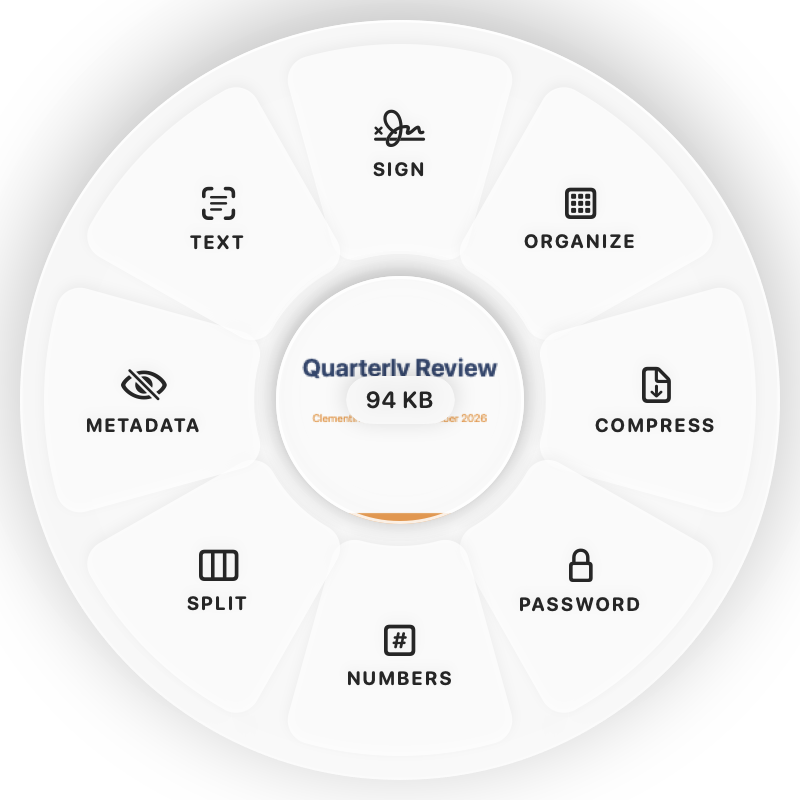
Start dragging any file — from Finder, the Desktop, Mail or a browser — and tap a key. A wheel appears with exactly what that file can become.
Convert.
HEIC to JPG. MOV to MP4. Word to PDF. Formats made for the file in your hand.
Edit.
Compress, crop, trim, sign, watermark, redact. The right tools, nothing else.
Share.
AirDrop, move, copy, copy the path — or drop in the center to keep it handy in a Float.
Tools wheel
The right tools.
Not all of them.
Press ⌘ while dragging a PDF and you get Sign, Organize, Compress and Password. A video gets Trim and Compress. A photo gets Crop and Cut‑out.
- Choose your own petals for every kind of file
- One photo or three hundred — in a single drop
- Originals are never changed or overwritten
175 tools.
Zero clutter.
Images, video, audio, PDFs, documents, slides, spreadsheets, subtitles and archives — with real editors where you need them.
Images
HEIC to JPG, WebP and AVIF, compress to a size, crop, annotate, cut out or blur backgrounds, upscale, watermark.
Video
Trim, split, crop, redact over time, compress to 8 MB, turn clips into GIFs.
Audio
Convert, trim, bleep, clean up noise, change speed or pitch, transcribe.
Fill & sign, organize, merge, compress, make scans searchable — or turn PDFs into Word, Excel and slides.
Documents & slides
Word, Pages, Markdown, EPUB, PowerPoint and Keynote — to PDF, images and each other.
Files
Rename in batches, password ZIPs, strip metadata from anything, AirDrop in one drop.
Editors
Real editors.
Not just buttons.
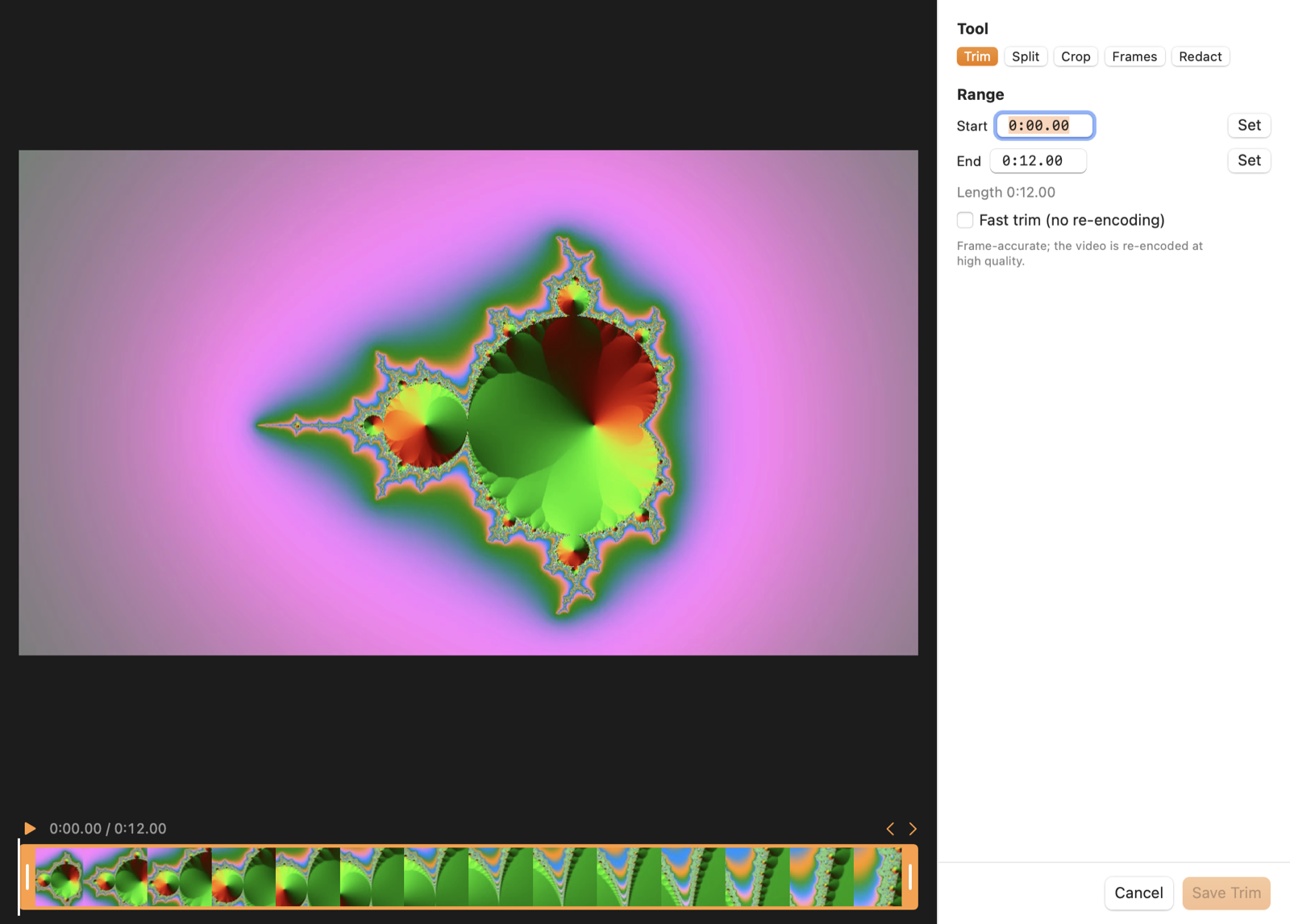
Trim and split video on a timeline. Blur a face for exactly the seconds it appears. Fill and sign a PDF. Annotate a screenshot. Then save.
⌃ ⌥ K
Find any tool
by typing.
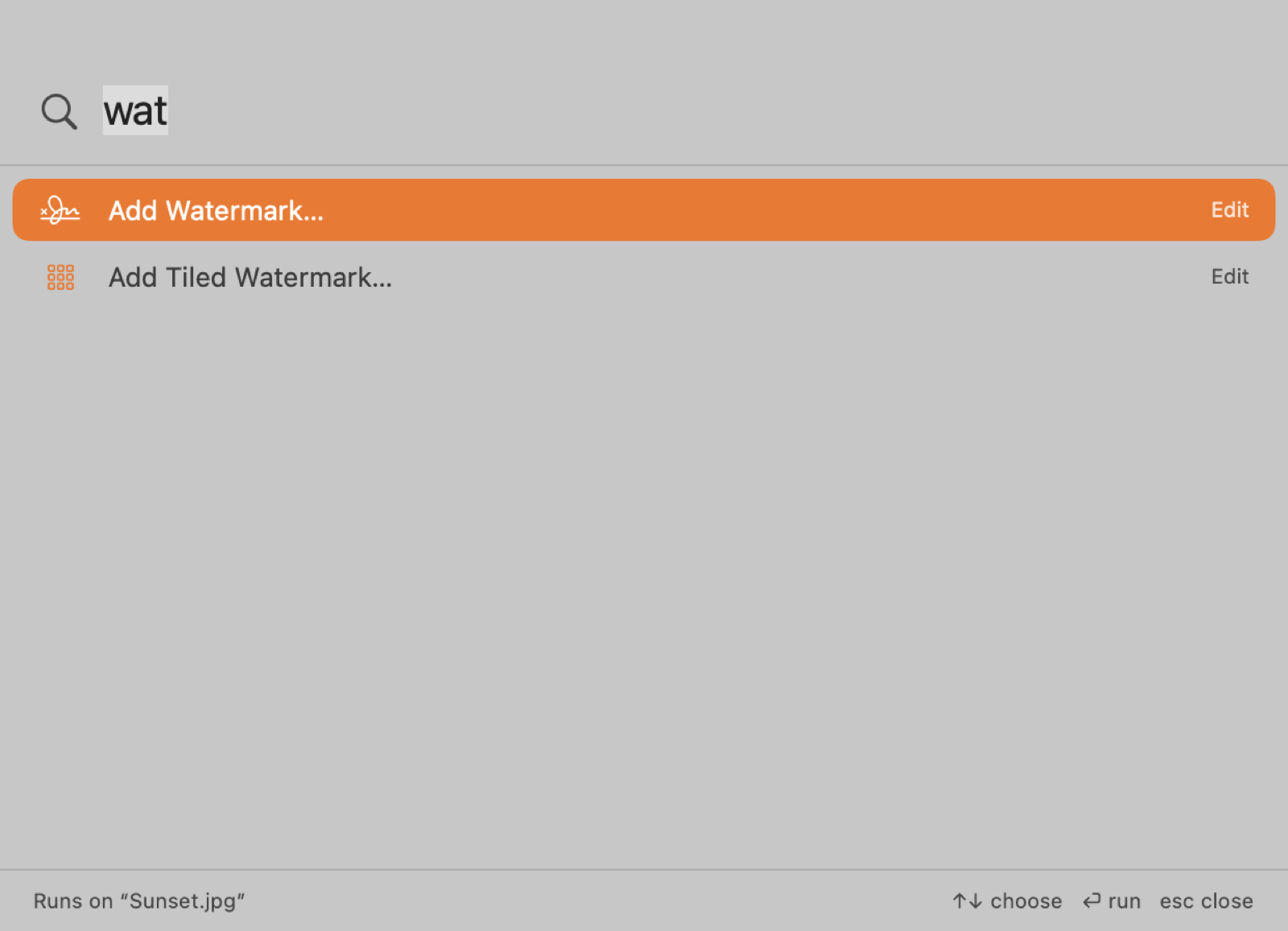
Select files in Finder, press ⌃⌥K and type “mp3”, “sign” or “watermark”. Press Return. The tools made for your file come first.
Let your Mac do
the repetitive part.
Hot folders
Anything saved into a watched folder converts itself — screenshots to JPG, recordings to MP4.
Right-click in Finder
Clementine Tools on any file in Finder, without dragging anything.
Shortcuts & Raycast
clementine:// links run any tool from Shortcuts, Raycast or Alfred.
Copy text from anywhere
Press ⌃⌥T and drag over a video, an image or a locked PDF. Its text is on your clipboard.
Transcribe on-device
Turn interviews and meetings into text or subtitles. The audio never leaves your Mac.
Your files.
Your Mac.
Every conversion, edit and transcription happens on your Mac. No account. No tracking. Nothing uploaded.
Questions? Answers.
Do I need to open an app to convert a file?
No. Start dragging the file and tap Shift — a wheel of formats appears around your pointer. Drop on one and you’re done. You can also use the floating shelf, right-click in Finder, or press ⌃⌥K and type.
Does Clementine upload my files?
No. Conversions, edits, transcription and text recognition run on your Mac. Nothing is uploaded, and this version of Clementine doesn’t connect to the internet.
Which Macs does Clementine run on?
Macs with Apple silicon (M1 or later). The minimum macOS version will be announced with the App Store release.
Can I share a file with a link?
Not yet. Share links are coming in a future update; they aren’t part of the first App Store release. Today you can AirDrop, copy, move or keep files in a Float.
Is there a subscription?
Pricing will be announced with the App Store release.

Every file tool.
One gesture away.
Clementine is coming to the Mac App Store.